Meet the new Agents, work with your AI Marketer in Microsoft Teams, and more in Profound
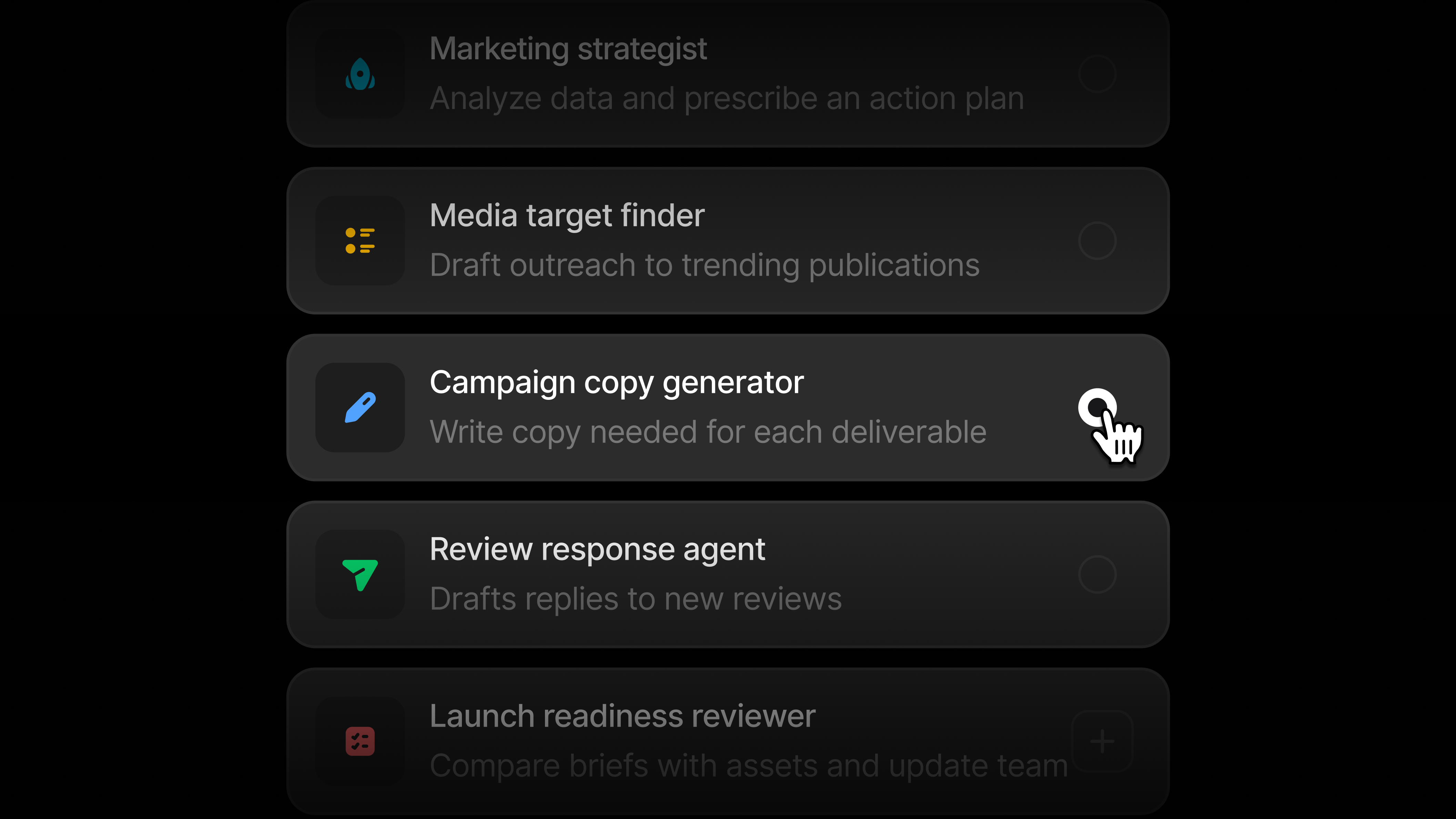
Build and run Agents in plain language
You can now tell AI Marketer the job you want done, and it will build the Agent for you. It will populate an instruction panel where you can confirm the rules, tools, and schedule. Each run draws on your Profound data and your brand context from Context Manager. With the new Agents, you can:
Have your AI Marketer build Agents for you: Describe what you want automated. Your AI Marketer asks follow-up questions and writes the instructions.
Build, run, and refine in one place: Edit an Agent and run it from the same page. Saved changes apply to the next run, and each run happens in the Agent's own chat, so you can review the output, request changes, and run it again.
Set triggers to keep Agents always on: Turn on a trigger in the Agent's settings, and it runs automatically. Run it on a schedule, when a competitor publishes a new blog post, when your visibility changes by 5%, when someone posts in a Slack channel, or whenever else your work calls for it.
Choose the tools each Agent can use: Give an Agent access to tools like Slack, your Knowledge Base, or your Profound data, and set what it can do with each. If a tool isn't connected, your AI Marketer flags the gap and helps you connect it.
What happens to the Agents you already built: Your existing node-based Agents are now called Workflows. They keep running as they do today, and you'll find them on the Agents page filtered by Workflow type. To move one to the new experience, open it and click Migrate. Your AI Marketer converts it into an Agent and leaves the original unchanged. For steps that need to run the same way every time, add a Workflow as a tool inside a new Agent.
The new Agents are rolling out to all Enterprise and self-serve customers. Watch a walkthrough to learn more or jump in to the new experience and ask your AI Marketer to build an Agent for you.
Work with your AI Marketer in Microsoft Teams
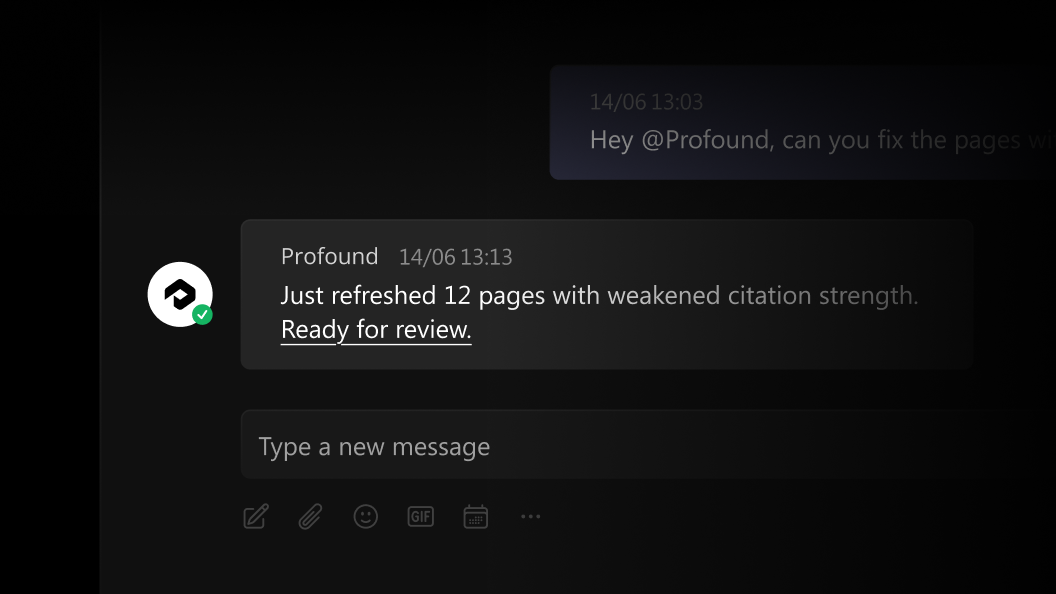
A lot of marketing work happens in Microsoft Teams. Profound now connects to it in both directions.
Chat with your AI Marketer in Teams: Once an admin installs the Profound app for your organization, anyone with a Profound account can chat with your AI Marketer one-on-one or @mention it in channels and threads to get answers. To get started, an admin can install the app from the Microsoft Marketplace.
Bring Teams conversations into Profound: Connect your Teams account so your AI Marketer and Agents can read channels and conversations and send messages for you. Ask your AI Marketer to summarize a discussion, or build an Agent that gathers updates from specific channels and posts its findings back to Teams. You can set up this integration on the Integrations page in Settings.
Import Confluence pages into your Knowledge Base
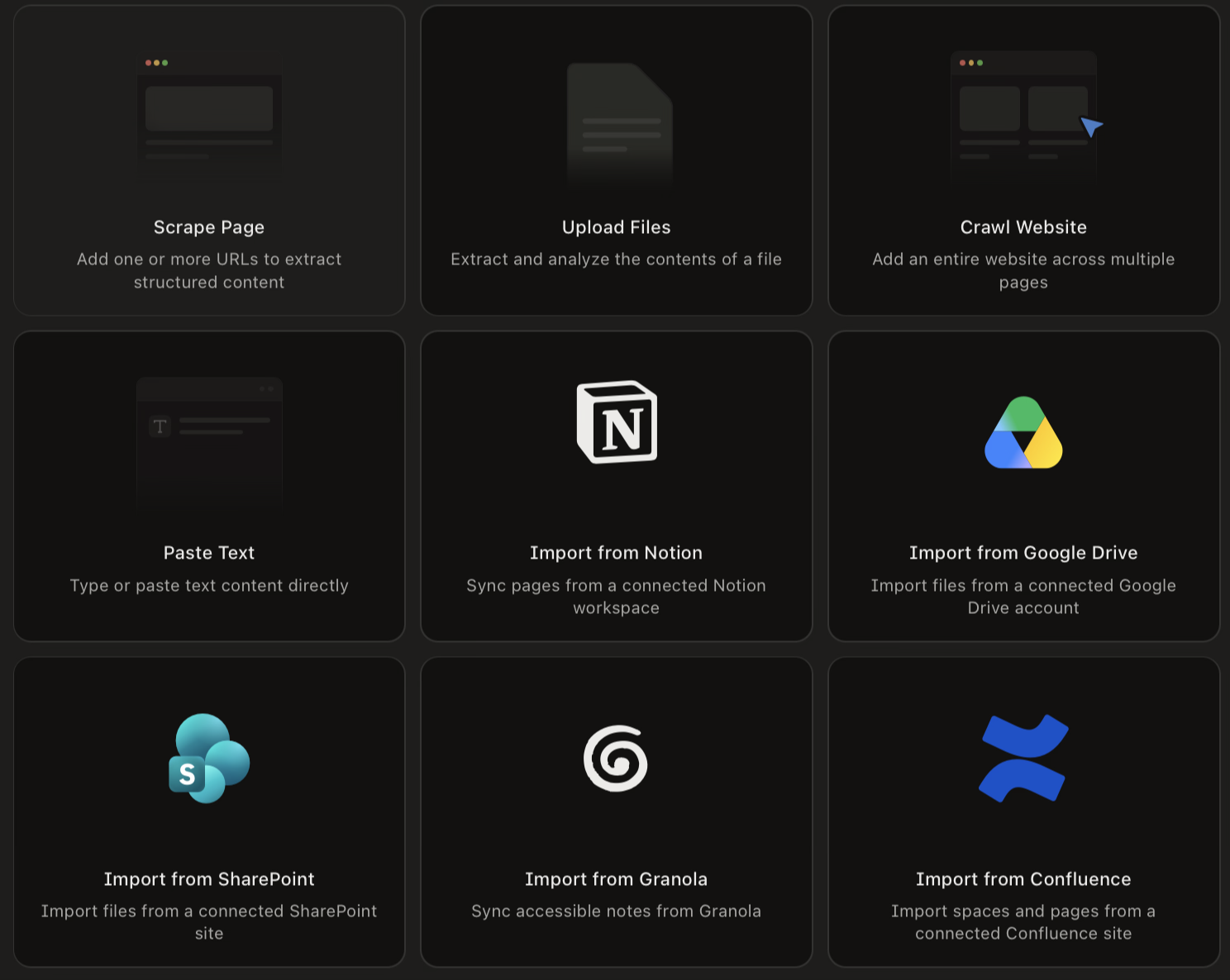
Brand guidelines, messaging docs, launch plans, and campaign retros often live in Confluence. You can now sign in with your Atlassian account, choose your spaces and pages, and import them into a Knowledge Base. Context Manager uses those pages to build the Brand Context your AI Marketer works from, so its outputs reflect how your team already describes your brand and plans its campaigns. Turn on auto-sync, and Profound refreshes those pages so your Brand Context stays up to date as your team updates Confluence.
To get started, open a Knowledge Base, click 'Add files', and choose Confluence. Learn more about Knowledge Bases.
Give your AI Marketer context from the tools you work in
Your priorities and active projects live across task trackers, documents, and meeting notes. You can now connect Asana, Jira, monday.com, Google Drive, SharePoint, Notion, and Granola to your Personal Context and choose the workspaces, boards, files, and notes to include. Profound syncs them daily, so your AI Marketer understands your role and current work and can recommend next steps tied to your goals.
To get started, open Context Manager, go to Personal Context, click 'Add context', and choose 'Connect to workspaces'.
Other updates
Finish setting up your context with a checklist: Context Manager now shows a checklist of the personal and brand context to add, and each item takes you straight to the page where you add it.
Sign in to each of your company's Profound organizations from Okta: If your company uses separate Profound organizations, IT admins can now copy a direct sign-in link for each one from the Enterprise Setup page. Add it as a tile in Okta or another identity provider, and your team lands in the right organization with one click.
Log in to Profound to explore these product updates, and please share your feedback on how we can improve.