
Changelog

Follow new updates and improvements to Profound.

Fill context gaps faster, set up Profound Teams, and more in Profound
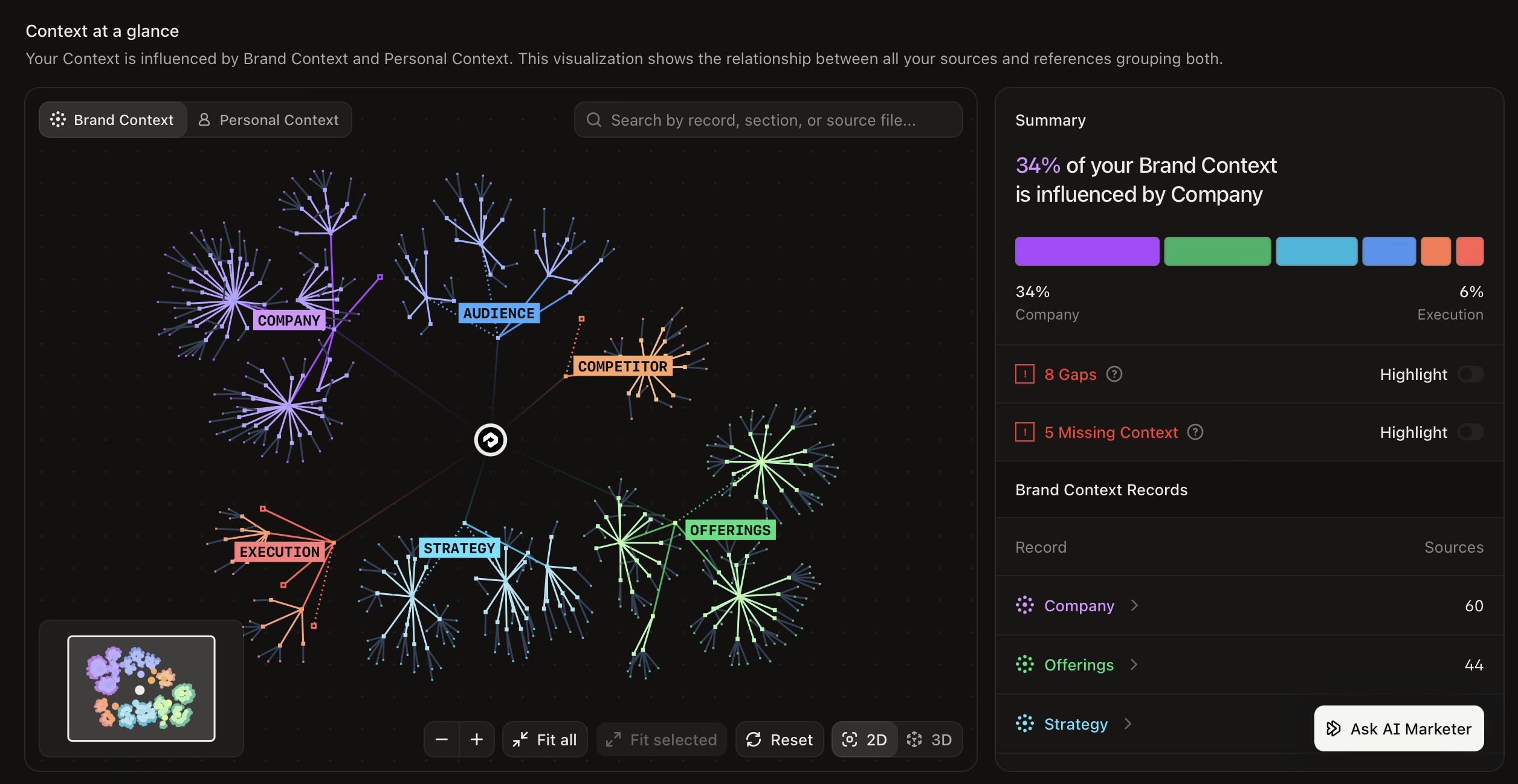
Fill gaps in context faster by seeing what shapes it

Your AI Marketer draws on your Brand and Personal Context to respond like someone on your team. The new Overview tab in Context Manager visualizes your context, making it easy to identify and fill gaps.

  • Close gaps: Turn on Highlight for Gaps, check the record, and select 'Fix gap'. Your AI Marketer asks one question at a time and applies each answer right away.

  • Add missing context: Turn on Highlight for Missing Context, check the record, and select 'Add Context'. Your AI Marketer helps you add the relevant context file.

  • Explore your source files: Browse the files your context draws from without leaving the Overview.

Context Manager is available on Enterprise and Agency plans. Learn more about Context Manager.

Give every brand, region, and business unit its own space with Profound Teams

Admins can now create Teams inside your organization. Each Team can have its own categories, shared resources, and credit wallet, while reporting still rolls up in one place.

  • Manage access by group: Add categories to a Team and access follows membership.

  • Control access to shared work: Share Dashboards, Documents, Sheets, Agents, and Workflows with a Team at the access level you choose, such as viewer or editor.

  • Reserve credits for each Team: Other Teams cannot spend the credits in a Team wallet. To set up Team wallets, contact your Profound account team.

Profound Teams is available on Enterprise. Admins can create Teams from the Teams tab on the People page in Settings. Learn more about Profound Teams.

Bring shopper reviews and questions into your Workflows

You can now connect your Bazaarvoice Conversations account to Profound to enable four new nodes that can import product feedback into Profound:

  • Find Products: Products in your Bazaarvoice account

  • Get Reviews: Shopper reviews

  • Get Product Ratings and Statistics: Ratings and statistics for your products.

  • Get Questions and Answers: Questions customers ask about a product and the answers

Use your AI Marketer to compare shopper feedback with what your product page and FAQ cover. Unanswered questions and rating distributions can help show which products deserve a closer look. To connect, open the Integrations page in Settings and select Bazaarvoice Conversations.

Other updates

  • Send Project tasks to Adobe Workfront: Use a Project's Export menu to send its suggested tasks and chats. To connect, open the Integrations page in Settings and select Adobe Workfront.

Log in to Profound to explore these product updates, and please share your feedback on how we can improve.
Meet the new Agents, work with your AI Marketer in Microsoft Teams, and more in Profound

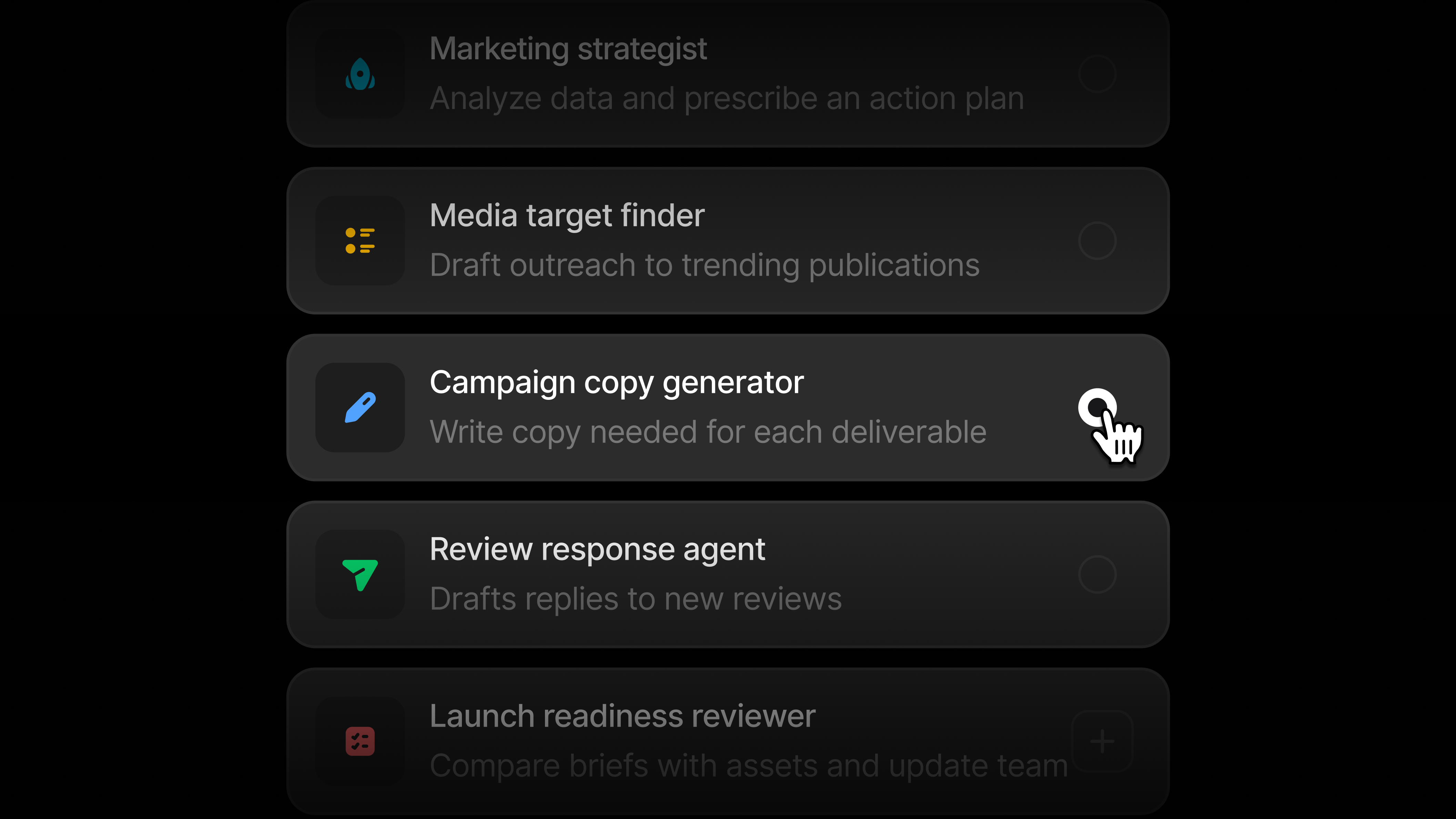
Build and run Agents in plain language

You can now tell AI Marketer the job you want done, and it will build the Agent for you. It will populate an instruction panel where you can confirm the rules, tools, and schedule. Each run draws on your Profound data and your brand context from Context Manager. With the new Agents, you can:

  • Have your AI Marketer build Agents for you: Describe what you want automated. Your AI Marketer asks follow-up questions and writes the instructions.

  • Build, run, and refine in one place: Edit an Agent and run it from the same page. Saved changes apply to the next run, and each run happens in the Agent's own chat, so you can review the output, request changes, and run it again.

  • Set triggers to keep Agents always on: Turn on a trigger in the Agent's settings, and it runs automatically. Run it on a schedule, when a competitor publishes a new blog post, when your visibility changes by 5%, when someone posts in a Slack channel, or whenever else your work calls for it.

  • Choose the tools each Agent can use: Give an Agent access to tools like Slack, your Knowledge Base, or your Profound data, and set what it can do with each. If a tool isn't connected, your AI Marketer flags the gap and helps you connect it.

What happens to the Agents you already built: Your existing node-based Agents are now called Workflows. They keep running as they do today, and you'll find them on the Agents page filtered by Workflow type. To move one to the new experience, open it and click Migrate. Your AI Marketer converts it into an Agent and leaves the original unchanged. For steps that need to run the same way every time, add a Workflow as a tool inside a new Agent.

The new Agents are rolling out to all Enterprise and self-serve customers. Watch a walkthrough to learn more or jump in to the new experience and ask your AI Marketer to build an Agent for you.

Work with your AI Marketer in Microsoft Teams

A lot of marketing work happens in Microsoft Teams. Profound now connects to it in both directions.

Chat with your AI Marketer in Teams: Once an admin installs the Profound app for your organization, anyone with a Profound account can chat with your AI Marketer one-on-one or @mention it in channels and threads to get answers. To get started, an admin can install the app from the Microsoft Marketplace.

Bring Teams conversations into Profound: Connect your Teams account so your AI Marketer and Agents can read channels and conversations and send messages for you. Ask your AI Marketer to summarize a discussion, or build an Agent that gathers updates from specific channels and posts its findings back to Teams. You can set up this integration on the Integrations page in Settings.

Import Confluence pages into your Knowledge Base

Brand guidelines, messaging docs, launch plans, and campaign retros often live in Confluence. You can now sign in with your Atlassian account, choose your spaces and pages, and import them into a Knowledge Base. Context Manager uses those pages to build the Brand Context your AI Marketer works from, so its outputs reflect how your team already describes your brand and plans its campaigns. Turn on auto-sync, and Profound refreshes those pages so your Brand Context stays up to date as your team updates Confluence.

To get started, open a Knowledge Base, click 'Add files', and choose Confluence. Learn more about Knowledge Bases.

Give your AI Marketer context from the tools you work in

Your priorities and active projects live across task trackers, documents, and meeting notes. You can now connect Asana, Jira, monday.com, Google Drive, SharePoint, Notion, and Granola to your Personal Context and choose the workspaces, boards, files, and notes to include. Profound syncs them daily, so your AI Marketer understands your role and current work and can recommend next steps tied to your goals.

To get started, open Context Manager, go to Personal Context, click 'Add context', and choose 'Connect to workspaces'.

Other updates

  • Finish setting up your context with a checklist: Context Manager now shows a checklist of the personal and brand context to add, and each item takes you straight to the page where you add it.

  • Sign in to each of your company's Profound organizations from Okta: If your company uses separate Profound organizations, IT admins can now copy a direct sign-in link for each one from the Enterprise Setup page. Add it as a tile in Okta or another identity provider, and your team lands in the right organization with one click.

Log in to Profound to explore these product updates, and please share your feedback on how we can improve.

SEO data is now in Profound, analyze dashboards with your AI Marketer, and more

Have your AI Marketer analyze SEO data for every page

Through our partnership with Moz, your AI Marketer can now explore SEO data for every page. Ask "Which pages are driving my AI visibility?" and it can add how each page ranks in Google, how strong it is, and which sites link to your competitors instead of you.

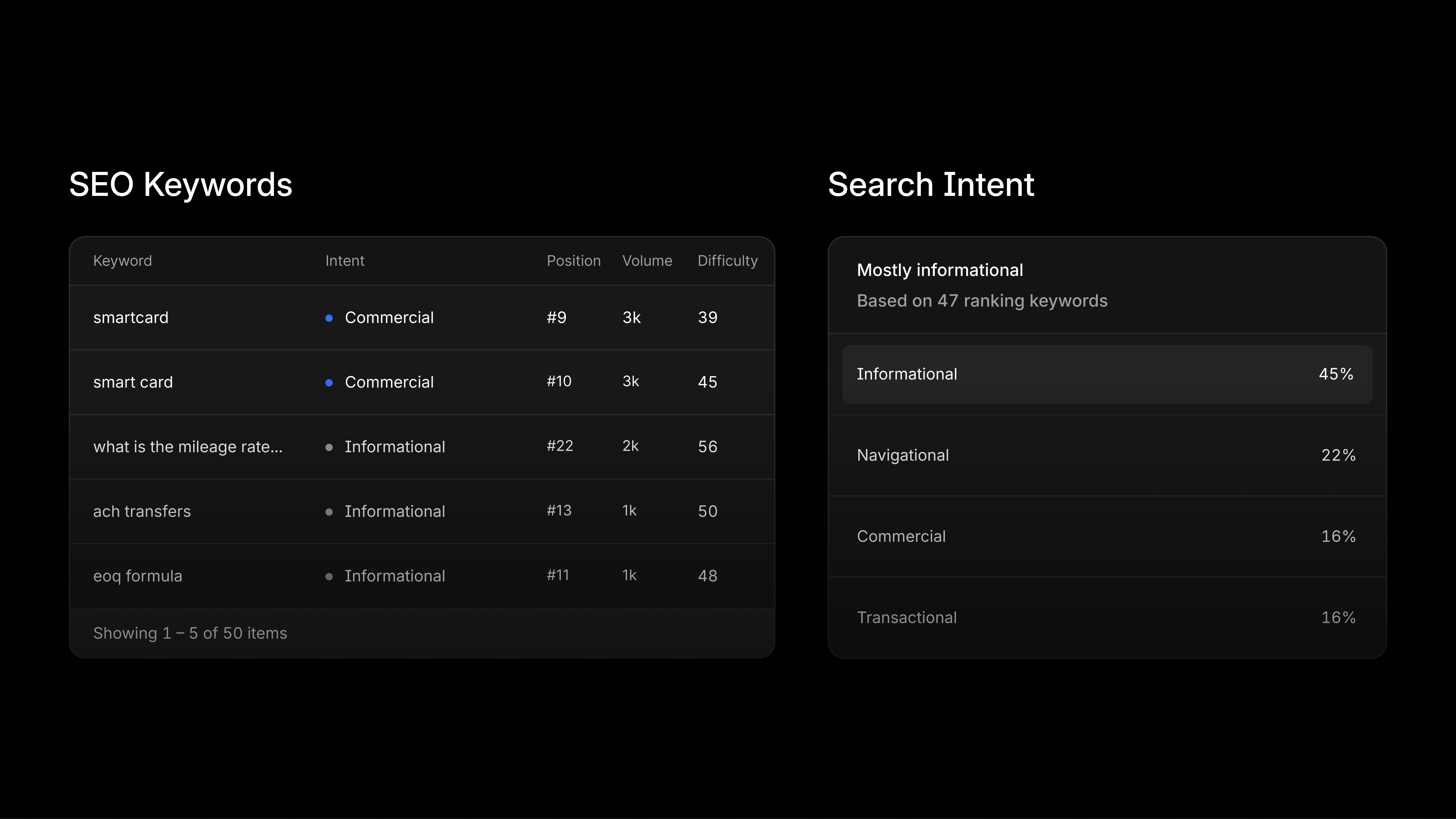
Every page in Pages also has a new Search Visibility tab. You can now:

  • See which keywords each page ranks for: Each keyword comes with its position, monthly search volume, difficulty, and searcher intent.

  • Understand why people land on a page: Search Intent splits the searches that bring visitors to a page into informational, navigational, commercial, and transactional.

  • Spot link opportunities: Citation Opportunities lists sites that link to a competitor's page on the same topic but not to yours.

  • Compare page and site strength: Page Authority and Linking Root Domains are new sortable columns in the Pages table, and Domain and Brand Authority show how strong your whole site and brand are.

  • Start from flagged opportunities: Insights call out things like "8 keywords within reach of page 1," each with one-click investigation from your AI Marketer.

Ask your AI Marketer how to navigate Profound

Your AI Marketer can now answer navigation questions, like where to check your credit usage or how to manage your tracked competitors, and point you to the right page and setting. It follows your organization's access controls, so it only directs people to pages they have permission to open. To try it, ask your AI Marketer where to check your credit usage.

Investigate any date range on your charts with your AI Marketer

Drag across points on an Answer Engine Insights line chart to select a date range, then send it to your AI Marketer to investigate. Clicking a single point still pins one date.

Add context to your charts

Chart Annotations lets you add markers to your Answer Engine Insights charts for events like a campaign launch or a content refresh, so you can see what happened around the time a metric moved. Profound also adds Answer Engine model changes automatically. Place annotations across your organization or scope them to one category. Everyone in your organization can view them, and editors and above can create, edit, and delete them by default.

Multi-category organizations can now better organize their knowledge

If you manage more than one category, you can now assign each Knowledge Base to the categories it applies to. Once you map them, a category's Brand Context draws only from its own Knowledge Bases, so one category's context stops appearing in another's, and only users with access to that category can view or edit them.

A new toggle on each Knowledge Base turns off its Brand Context contribution, so it stores files without shaping context. Synced data sources in Context Manager, like Gong and Slack, can be scoped to categories too, and bulk edit lets you map many Knowledge Bases at once.

Existing Knowledge Bases still apply to every category by default. To limit a category's Brand Context to specific Knowledge Bases, select that category under 'Limit to select categories' on those Knowledge Bases and remove it from the others. Learn more about Knowledge Bases.

Other updates

  • Password-protect shared Document links: Add a password when you share a link to a Profound Document, then add, change, or remove it later from the Share dialog. Visitors are prompted for the password before they can view the document.

  • Export raw data from Custom Dashboards: Use Export at the top right of any Custom Dashboard and choose Export as Zip to download each chart's raw data as a separate CSV file.

Log in to Profound to explore these product updates and please share your feedback on how we can improve.
Earlier updates