Know the prompts to track with Prompt Analysis, email with your AI Marketer, and more in Profound
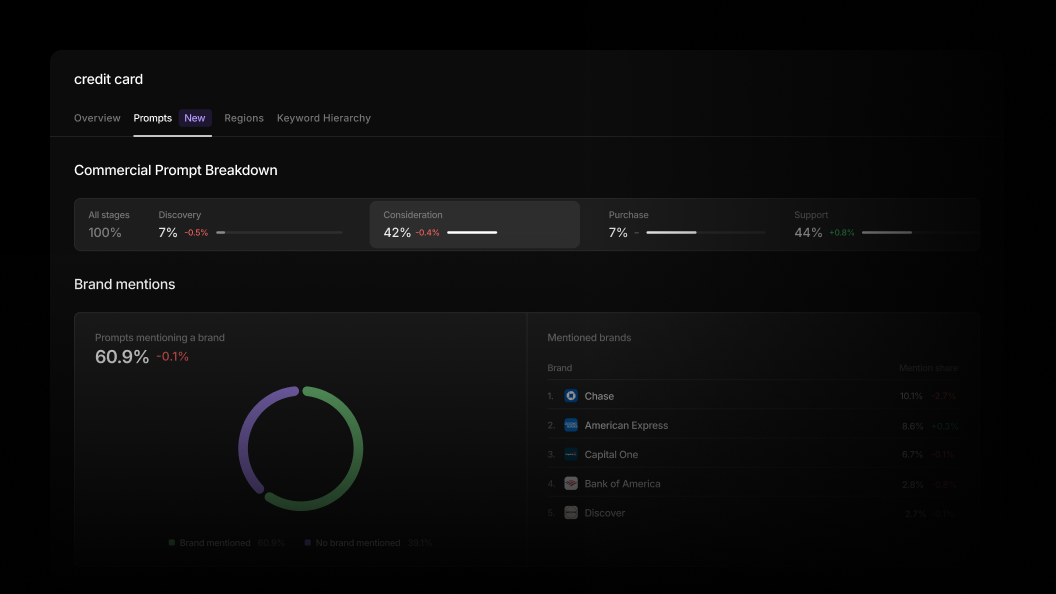
Choose which prompts to track with Prompt Analysis
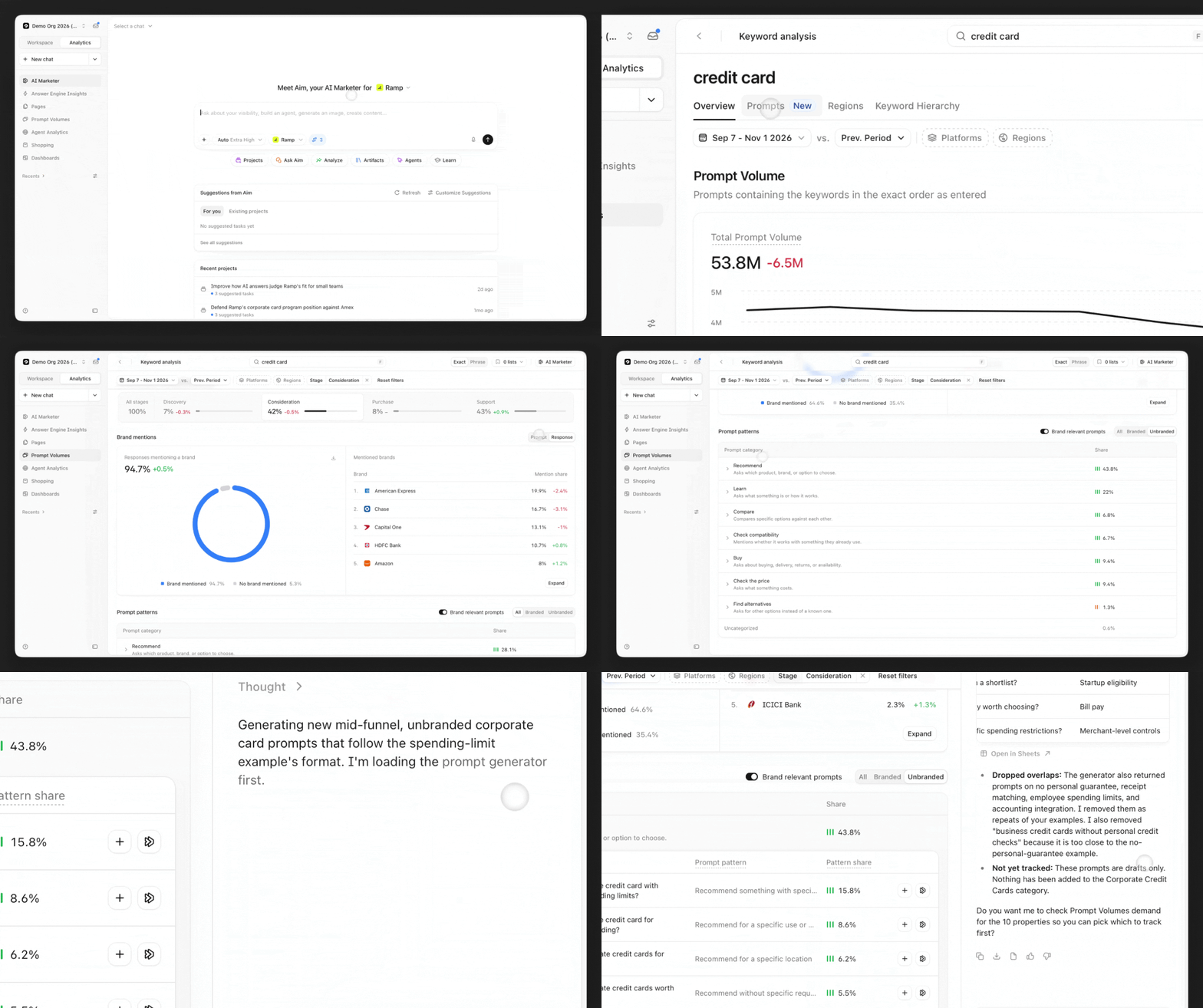
In Prompt Volumes, the new 'Prompts' tab lets you see the types of questions people ask AI about a keyword, grouped by buying stage.
Compare demand by buying stage: See what share of a keyword's conversations fall in Discovery, Consideration, Purchase, and Support. Compare with the previous period to see which stages are growing.
Find unbranded demand: Filter to unbranded prompts to see questions that don't name a brand. Start tracking them with one button to see which brands AI mentions most in its answers.
Track example prompts: Questions are grouped by each prompt pattern, like a recommendation or a price check. Each group comes with example prompts you can add to Answer Engine Insights. Ask your AI Marketer to explain a group of questions or write more prompts like them.
All Enterprise customers can use the 'Prompts' tab today. To get started, open Prompt Volumes, search for a keyword, and select 'Prompts'. Learn more about the Prompts tab.
Email your AI Marketer and get answers in your inbox
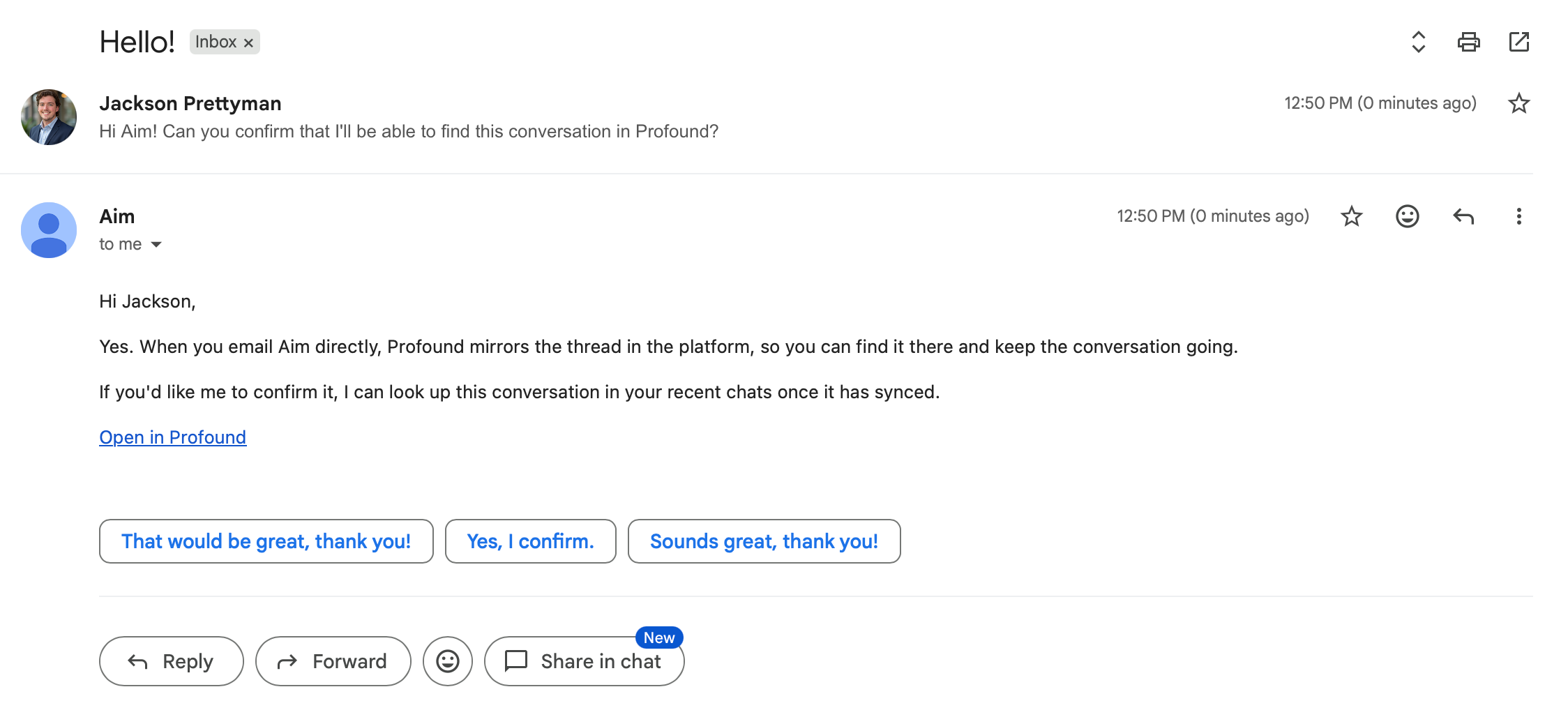
You can now email your AI Marketer at aim@mail.tryprofound.com. It answers by email, and the conversation also appears in Profound.
Forward an email and ask about it: For example, forward a competitor's launch announcement and ask how it affects your positioning.
Add it to a thread quietly: CC aim@mail.tryprofound.com on a thread. Your AI Marketer reads it but only replies when someone mentions it.
Email results to your team: Your AI Marketer and Agents can send email from aim@mail.tryprofound.com to anyone with your company's email domain, without having to connect a mailbox. For example, an Agent can send your team a monthly competitive brief.
Email works right away from the address you use to sign in to Profound. To use a different address, add it on the Email settings page.
See what your AI Marketer remembers as you chat
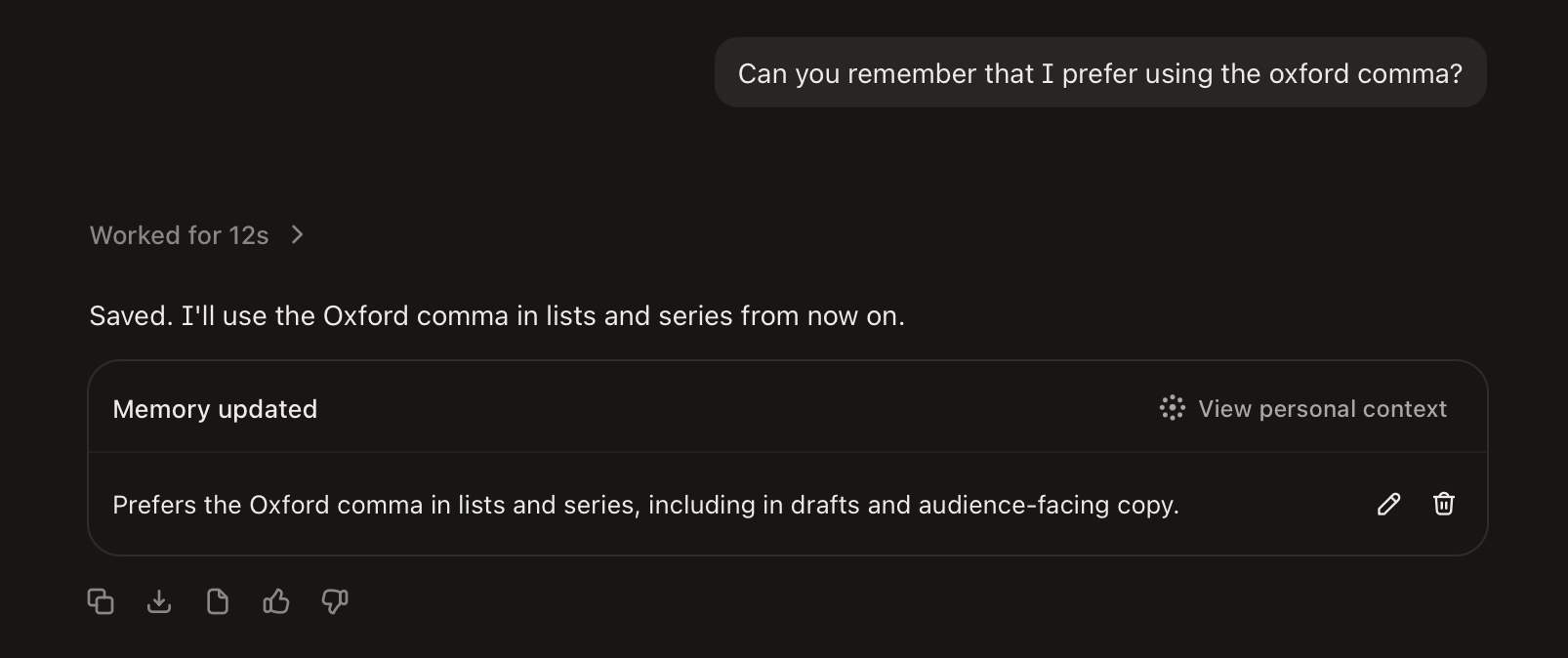
Your AI Marketer now saves memories to your Personal Context while you chat. A chip in the chat shows what it saved, with a link to your Personal Context page.
Give memory to your AI Marketer with every chat: Phrases such as "I’d prefer…", "try again but this time…", or “for context…” teach your AI Marketer and save those learnings for future chats.
Add context from your workspaces: Connect tools like Notion, Google Drive, Slack, or Jira to Personal Context. Your AI Marketer uses what it finds there when it responds.
Check where a memory came from: Each memory links to its source, such as a connected document or a past chat.
To add context from your workspaces, open Personal Context in Context Manager and select 'Add Context', then 'Connect to Workspaces'. Learn more about Context Manager.
Trigger Agents on custom Slack events
Slack triggers can now start an Agent when a specific person sends a message, reacts to a message, or is @mentioned.
Reply when you're mentioned: Set a trigger for when you're @mentioned. Add Slack as a tool, and the Agent can reply in the channel.
Act on a teammate's posts or reactions: For example, run a final copy check when your editor reacts to a draft.
Set defaults for required inputs: Without defaults, a triggered run waits for someone to fill in its required inputs. Set a default for each one, and the run finishes on its own. Profound flags missing defaults, and your AI Marketer can set them for you.
To get started, open an Agent, select 'Add' next to 'Run triggers', and choose Slack. The Profound Slack app needs to be in the channel you pick. Learn more about triggers in Agents.
Other updates
Limit what a custom role can do: Admins can now block a custom role from viewing or editing Agents, Sheets, Documents, and Dashboards, and from running Agents and Sheets. A block still applies when someone shares an item with a member of that role. Learn more about custom roles.
Bring entire SharePoint folders into a Knowledge Base: You can now upload entire SharePoint folders at once. You can also import a SharePoint folder and keep it in sync. When a file in that folder changes, your AI Marketer picks up the change at the next sync. To get started, open a Knowledge Base and select 'Add Files'.
Log in to Profound to explore these product updates, and please share your feedback on how we can improve.